WEMSA Cloud Instructions
Access your account, manage users, and reset passwords.
Use this page to get started with WEMSA Cloud, log in through the web portal, manage user accounts, and update or reset passwords.
Before You Begin
- WEMSA Cloud 2.0 is powered by NextCloud.
- You may need approval before receiving login credentials.
- Some account management options require Group Admin permissions.
Need Support?
If you do not receive your approval email or password reset email, contact helpdesk@wisconsinems.com.
Quick Links
Follow these steps to begin using WEMSA Cloud.
- Review the WEMSA Cloud introduction materials, if provided by your organization.
- Complete the Data Storage Center New Account Setup Form.
- After your submission is approved, you will receive an email with your login credentials.
If your approval email does not appear in your inbox, check your spam folder. If you still do not see it, contact helpdesk@wisconsinems.com.
WEMSA Cloud 2.0 is powered by NextCloud.
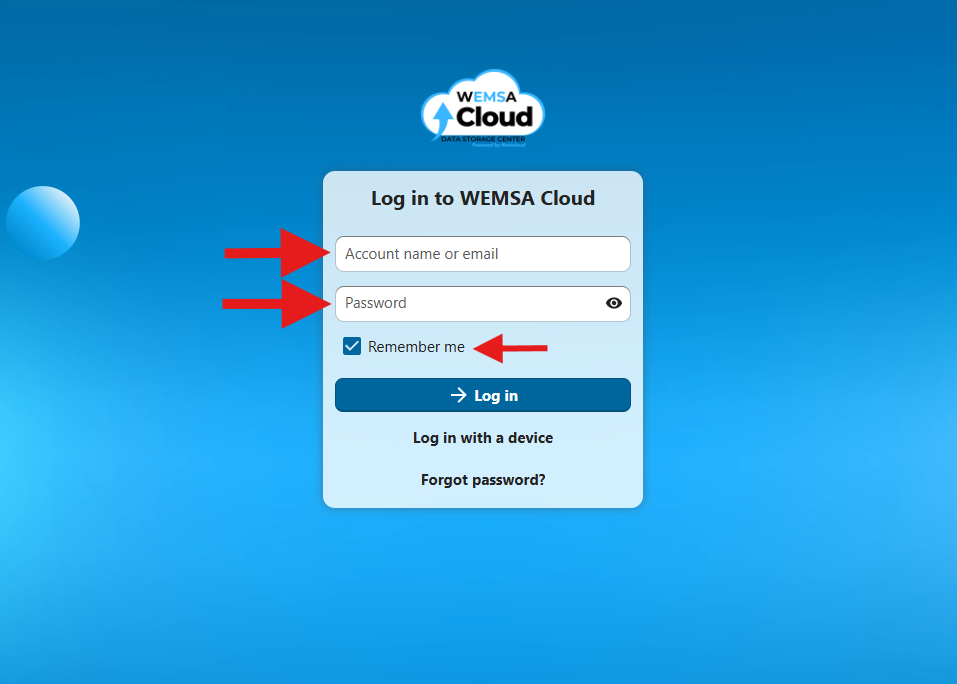
Use the web portal to access your WEMSA Cloud account.
- Go to cloud.wisconsinems.com.
- Enter your credentials. If this is your first time logging in, use the credentials from your approval email.
- Click Log in.
- To improve visibility, click your profile icon in the top-right corner and select Appearance and accessibility to choose a theme.
Bookmark the login page for faster access later.
Only check the Remember me box if you understand and accept the risks of storing login information on your device.
Click the WEMSA Cloud icon in the top-left corner to return to the dashboard.
WEMSA Cloud uses NextCloud terminology for files and shared access.
Personal Files are files you created or uploaded and count against your storage quota. All Files includes your personal files plus files that others have shared with you.
Personal Files helps separate your own uploaded data, while All Files gives you a broader view of accessible shared content.
These steps are for administrators creating a new user account in WEMSA Cloud.
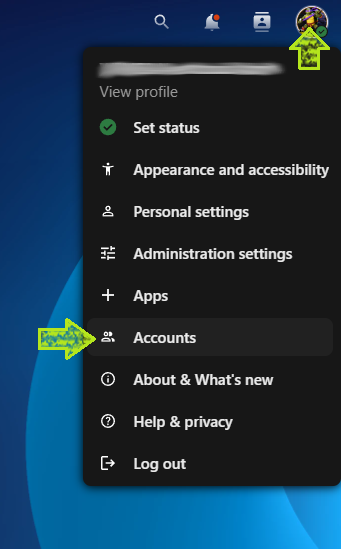
- Click the profile icon in the top-right corner and select Accounts.
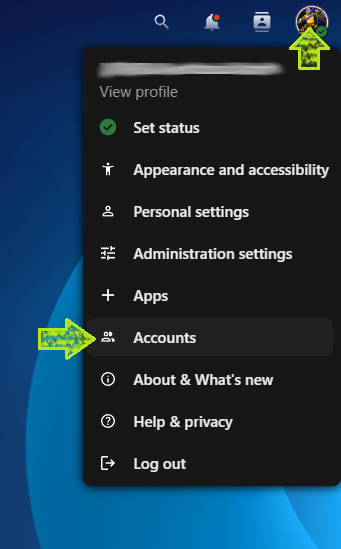
- Click + New account in the top-left corner.
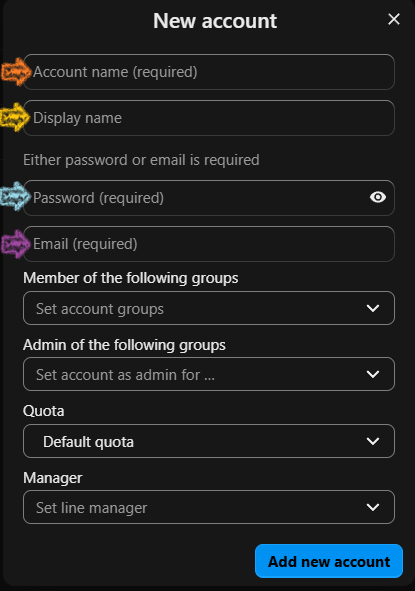
- Enter the new Account name.
- Enter the Display name.
- Enter a secure password and the user’s email address.
- Under Member of the following groups, select the service department name.
- Click Add new account.
The Accounts option is only visible to users with Group Admin permissions.
- Use lowercase letters only.
- Numbers are allowed.
- Do not use spaces, symbols, or special characters.
- Examples: jsmith911, jwick5, pparker, bwayne
Spaces are allowed in the Display name field.
Some options may vary depending on your account configuration, such as quota, manager, or admin group settings.
Administrators can edit, disable, delete, or disconnect existing users.
Edit a User
- Click the profile icon in the top-right corner and select Accounts.
- Find the user in the Accounts list.

- Click the pencil/edit icon to update the user’s display name, password, email, groups, or Group Admin status.
- Make your changes.
- Click the checkmark icon on the far right to apply the changes.
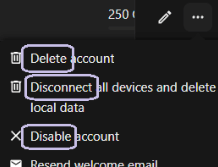
Disable, Delete, or Disconnect a User
- Find the user in the Accounts list.
- Click the three-dot menu.
- Select the action you want: Disable, Delete, or Disconnect.
The Accounts option is only visible to users with Group Admin permissions.
Use these steps if you know your current password and want to update it.
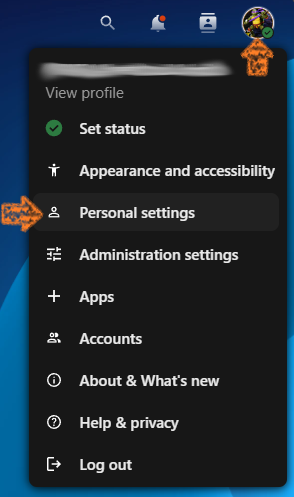
- Click the profile icon in the top-right corner and select Personal settings.
- On the left-hand side, under the Personal category, click Security.
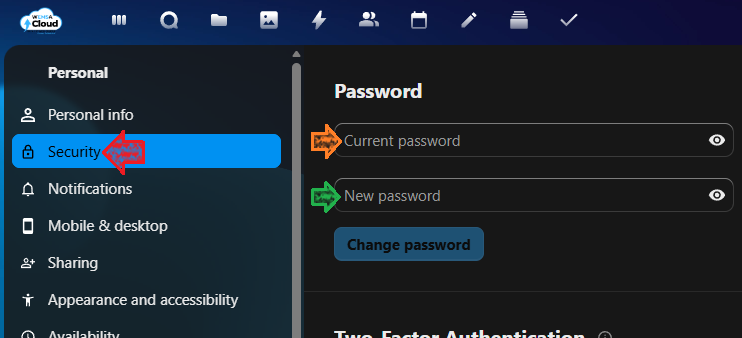
- Under Password, enter your current password and your new password, then click Change password.
Use these steps if you cannot log in and need a password reset email.
- On the WEMSA Cloud login page, click Forgot password? at the bottom of the login box.
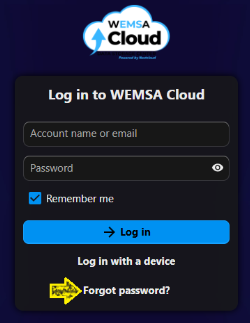
- Enter either your email address or your username.
- Click Reset password (the green box below should appear if an account using that e-mail address exists).
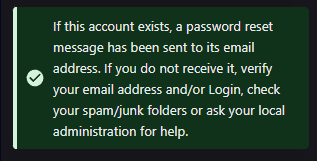
- If you do not receive the reset email in your inbox or spam folder, contact helpdesk@wisconsinems.com.
Check both your inbox and spam folder before reaching out for support.
Need Help?
For support with account approval emails, password reset issues, or general WEMSA Cloud access, contact helpdesk@wisconsinems.com.